Set up your first campaign
Each setup step in the order the app shows it, what must be filled in before you can publish, and the switches that start real outreach.
Last reviewed November 7, 2026
Create the campaign
- Open Campaigns and press Create new. Members, admins and owners can do this.
- Give it a name your team will recognize and pick the objective. This guide follows Recover abandoned checkouts; Choosing an objective explains the others.
- Under Where leads come from, choose the source. Sources are grouped as stores and checkouts, email and SMS platforms, CRMs, and automation tools and files. One marked Not set up yet cannot be picked, and the source cannot change once the campaign exists.
- Press Create. The campaign starts as a draft from the objective's template, with every trigger off, and setup opens.
Each step saves when you press Continue or Save. Saved changes stay in a draft until you publish.
Work down the sidebar
| Step | What to do | If you change nothing |
|---|---|---|
| Lead source (named after the source you chose, such as Shopify) | Check the store connection. Set how long a checkout sits idle before it counts as abandoned, from 5 to 10,080 minutes. Leave the triggers off for now. See the Shopify lead source or Custom API. | 30 minutes |
| Brand | Pick a brand profile, or add one. A campaign cannot publish without it. | Nothing is picked |
| Offer | Add at least one code, or choose Don't offer a discount. Publishing is blocked while the campaign offers a discount with no code. | Offer a discount, no codes |
| Outreach channels | Press Configure on each channel to pick the number and the mailbox. | All channels: calls, texts and email |
| Start conditions | Limit which shoppers the campaign takes, and how often. | Every shopper, no cap, once every 30 days |
| Configuration | Name the agent, and pick its voice and languages. | Natalee, the default female voice, English (US) |
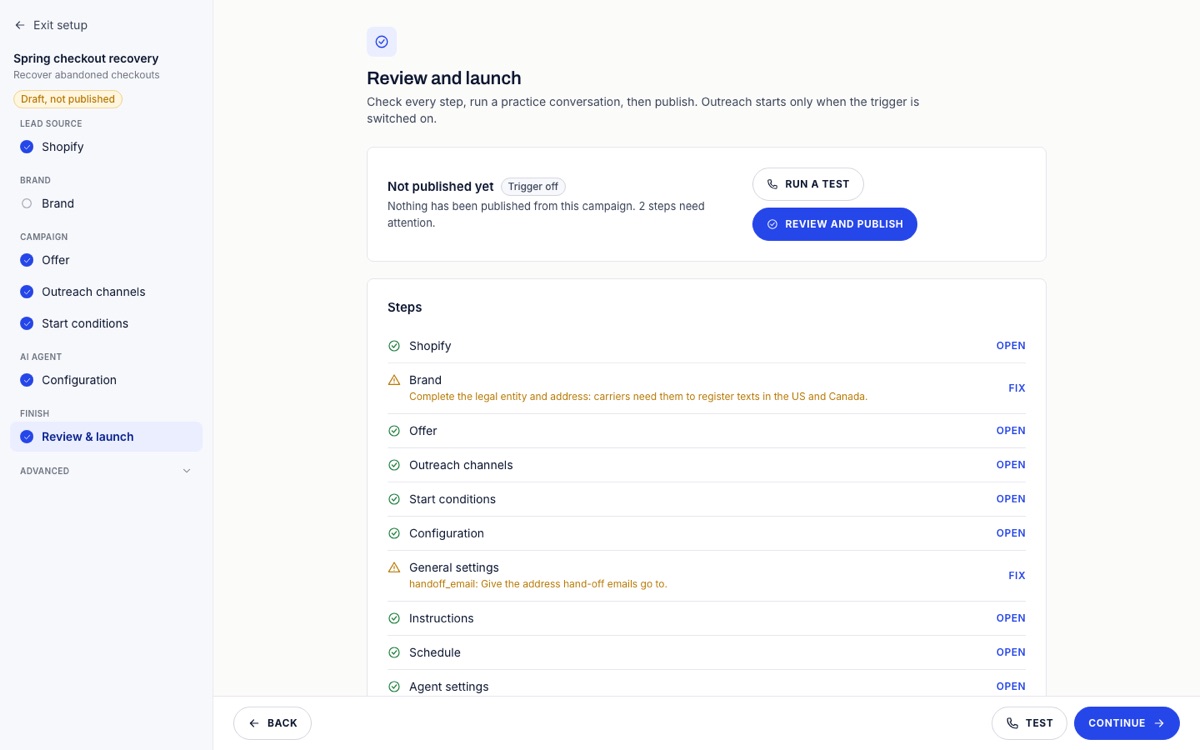
| Review & launch | See every step's state, test, and publish. |
Advanced steps to open before publishing
The steps under Advanced start with working defaults, with one exception: hand-off emails are on and have no address. Open General settings and give the address under Hand-off channels, or switch hand-off email off. Publishing is blocked until you do.
Read the rest once. Instructions holds the brief the agent works from, and the template's text is generic until you add your own products, shipping and returns facts. Compliance holds the consent rules.
Check consent before you expect calls. Shopify records marketing consent for texts and email, never for calls. A Shopify shopper gets calls only when call consent is on record, or when the campaign has SMS consent covers calls on, which it does from the start when the brand uses ACR's recommended checkout wording “Text or call me with news and offers”. Shoppers who did not tick marketing get no texts or email either.
Test without contacting anyone
Press Test in the footer of any step, or Run a test on Review & launch. An AI plays the shopper against your current setup, including unpublished changes, and the transcript appears in the dialog. No call, text or email goes out. The phone number you enter only sets the language and local time.
A call test needs the voice provider to be set up, and a text or email test needs a text AI to write the reply. If one is missing, the test says so.
To watch a whole sequence run over time, add yourself as a lead, have an admin mark that lead as a test lead, and assign the published campaign to it. Every step is recorded as simulated, and the run does not count toward your plan.
Hear the agent on your own phone
The same dialog has Call my phone. The agent calls you from the store's own number with the campaign's current draft, published or not, and works while checkout reading is off. It opens with “This is a test call from Growth Dept ACR.” and then talks to you as it would to a shopper with a sample cart.
- Press Test, choose Call my phone, and enter your mobile number.
- Press Text me a code and type the 6-digit code from the text. You do this once; ACR keeps the number for your test calls in every store you belong to.
- Check your first name and the language, then press Call me. Hang up when you are done: the transcript and a summary appear in the dialog.
A test call only goes to your own confirmed phone, never a number typed for the call or a shopper's. Each person can place 3 an hour, one at a time, and a store 10 a day, to countries the campaign's geo permissions allow calls to. Anything the agent offers to text or book during the call is not sent, and the call creates no lead, run or analytics.
Until the store has a phone number, the option reads “Add a phone number to place a test call.” and the practice conversation still works. Once Growth Dept adds a number under Phone numbers, test calls work with no other change. API keys and demo stores cannot place one.
Publish, then switch it on
Press Review and publish on Review & launch. The dialog lists what changed and anything still missing, with a link to fix it. Publishing does not contact anyone or switch a trigger on.
Shopify shoppers reach a campaign only when all of these are true:
- The campaign is published.
- An admin has pressed Start reading checkouts for the store under Integrations in the user menu. This covers the whole store.
- The Checkout abandoned trigger is on, on the campaign's lead source step. It asks you to confirm.
- Growth Dept has switched live sending on. While it is off, steps run and are recorded, and nothing reaches the shopper.
A Custom API campaign takes events only while its trigger is on, so send them to the Trigger URL shown on that step. A File upload campaign has no trigger to manage: runs start when you import or assign leads. Other objectives start from other events, such as a paid order or a lapsed customer; Choosing an objective lists them.
The Order placed switch can stay as it is. An order ends outreach to the shopper whichever way that switch is set.
Check that it worked
- The campaign shows Running on the Campaigns page.
- New shoppers appear on Leads. A shopper who was passed over has the reason under Events on their lead page.
- Campaign Runs shows who the campaign took on, and Interactions shows each call, text and email.
If nobody arrives, go through why a campaign has no leads.